Connecting to Practice Fusion
A step-by-step walkthrough of subscribing to the FHIR API and authorizing Scribe360 to read your practice's chart data.
Why connect?
When Scribe360 is connected to your Practice Fusion EHR, every SOAP note generation can use the patient's recent chart context — active diagnoses, chronic problems, allergies, active medications, and recent vitals — as background for the AI. The transcript still wins on conflict; the chart data is reference, not authority.
Connecting unlocks more accurate Objective sections (with date-labeled vitals) and more grounded Assessment reasoning when chronic conditions are relevant to today's complaint.
The connection has two sides
Practice Fusion side
A Practice Administrator subscribes to the HL7 FHIR API add-on inside Practice Fusion. $0 during PF's early adopter period.
Scribe360 side
A physician or practice admin clicks Connect Practice Fusion on the Settings page. One-click OAuth — tokens auto-refresh after that.
Before you start
- You must sign in to Practice Fusion as a Practice Administrator. Other roles cannot subscribe to FHIR APIs.
- Have your practice's billing details ready — though the FHIR add-on itself is $0, Practice Fusion's checkout still walks through their standard contract flow.
- This walkthrough reflects Practice Fusion's UI as of October 2026. If their pages have moved, look for the same conceptual steps: marketplace → app → add-ons → FHIR.
Step-by-step: Practice Fusion side
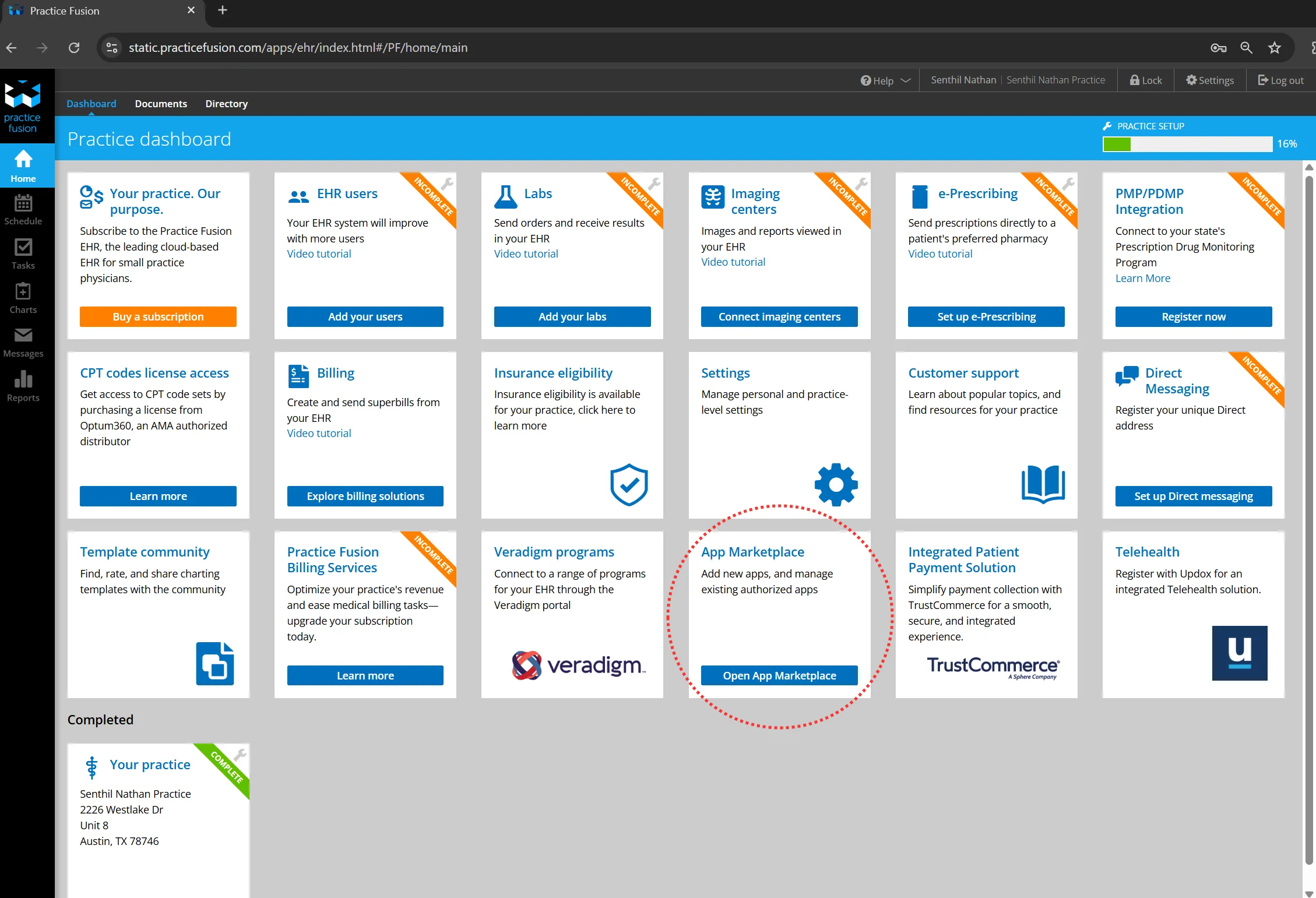
Open the App Marketplace
Practice Fusion → Home
On the Practice Fusion dashboard, find the App Marketplace tile and click Open App Marketplace. This is where Practice Fusion lists apps that can integrate with your EHR.
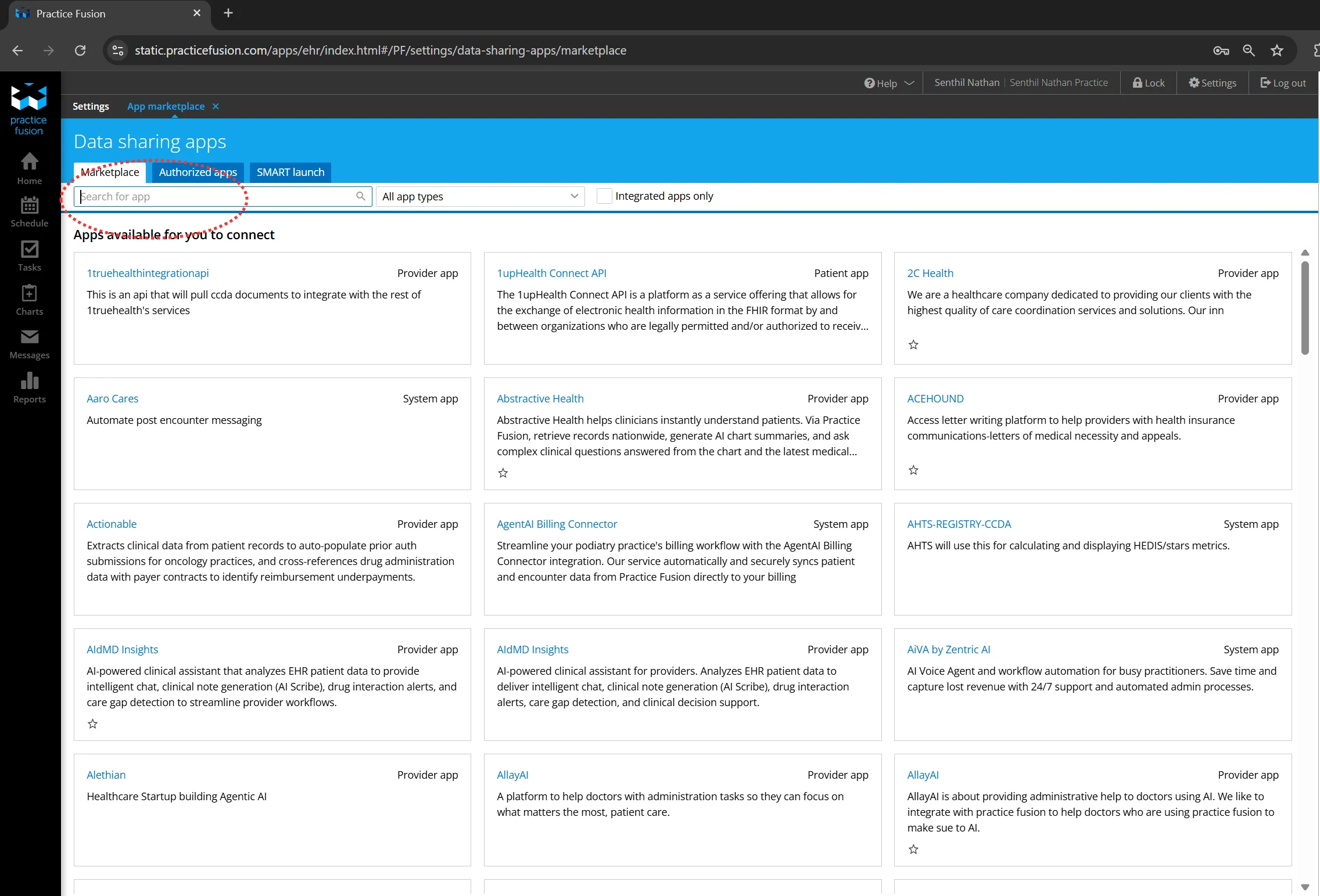
Search for Scribe360
App Marketplace → Marketplace tab
In the search box, type scribe360. The marketplace will filter to show matching apps.
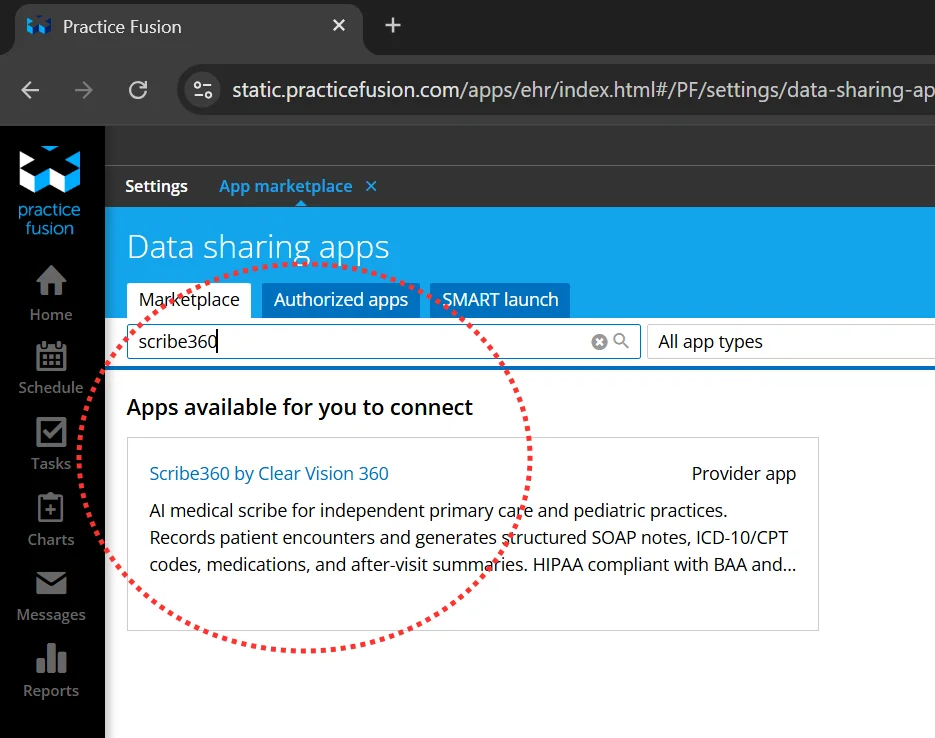
Open the Scribe360 listing
Marketplace search results
Click Scribe360 by Clear Vision 360. This is the official Scribe360 listing — the app description should mention "AI medical scribe for independent primary care and pediatric practices."
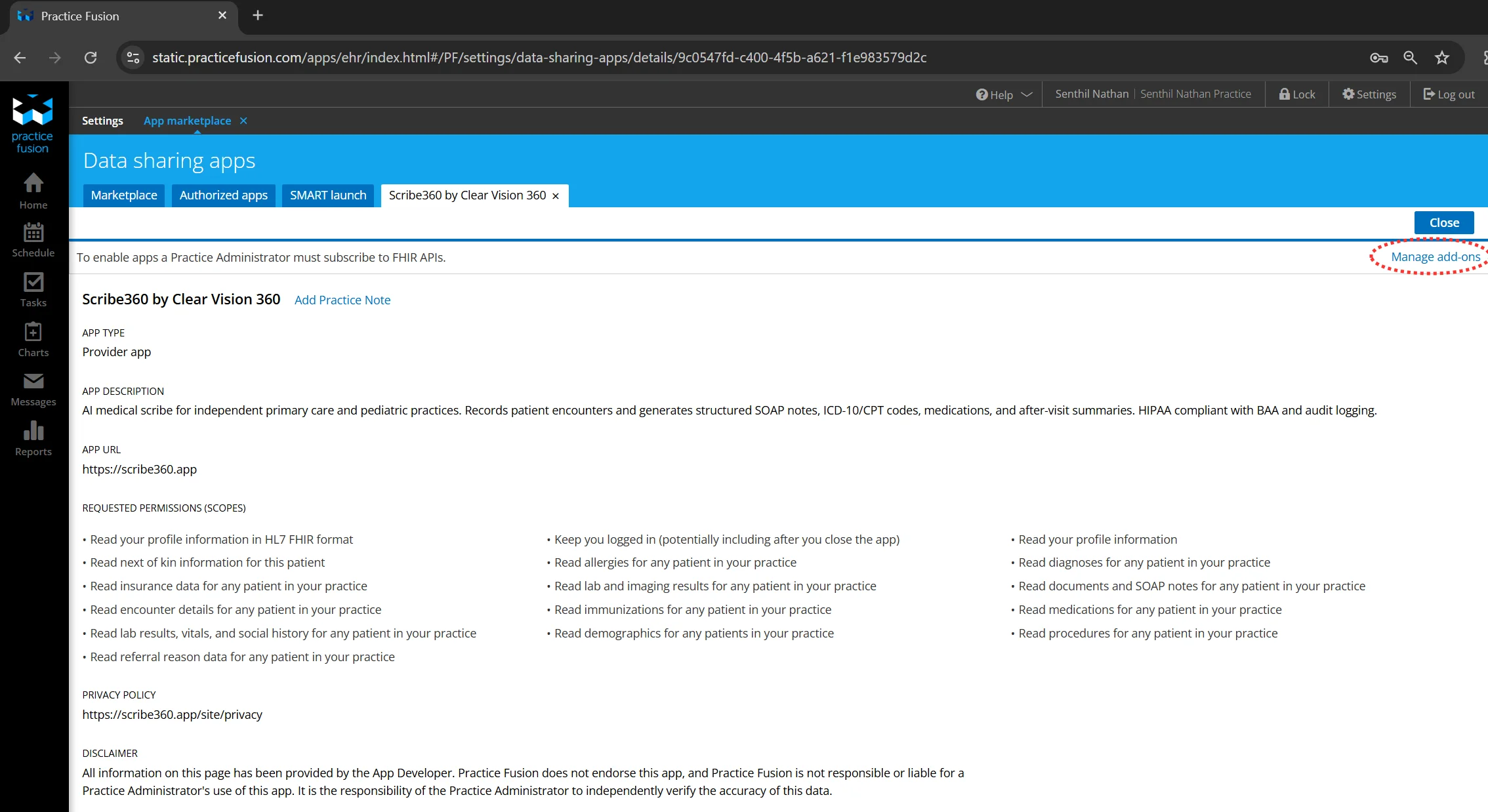
Click Manage add-ons
Scribe360 listing detail
On the Scribe360 listing, click Manage add-ons in the top right. Practice Fusion treats the FHIR API access required by Scribe360 as a separate add-on you opt into.
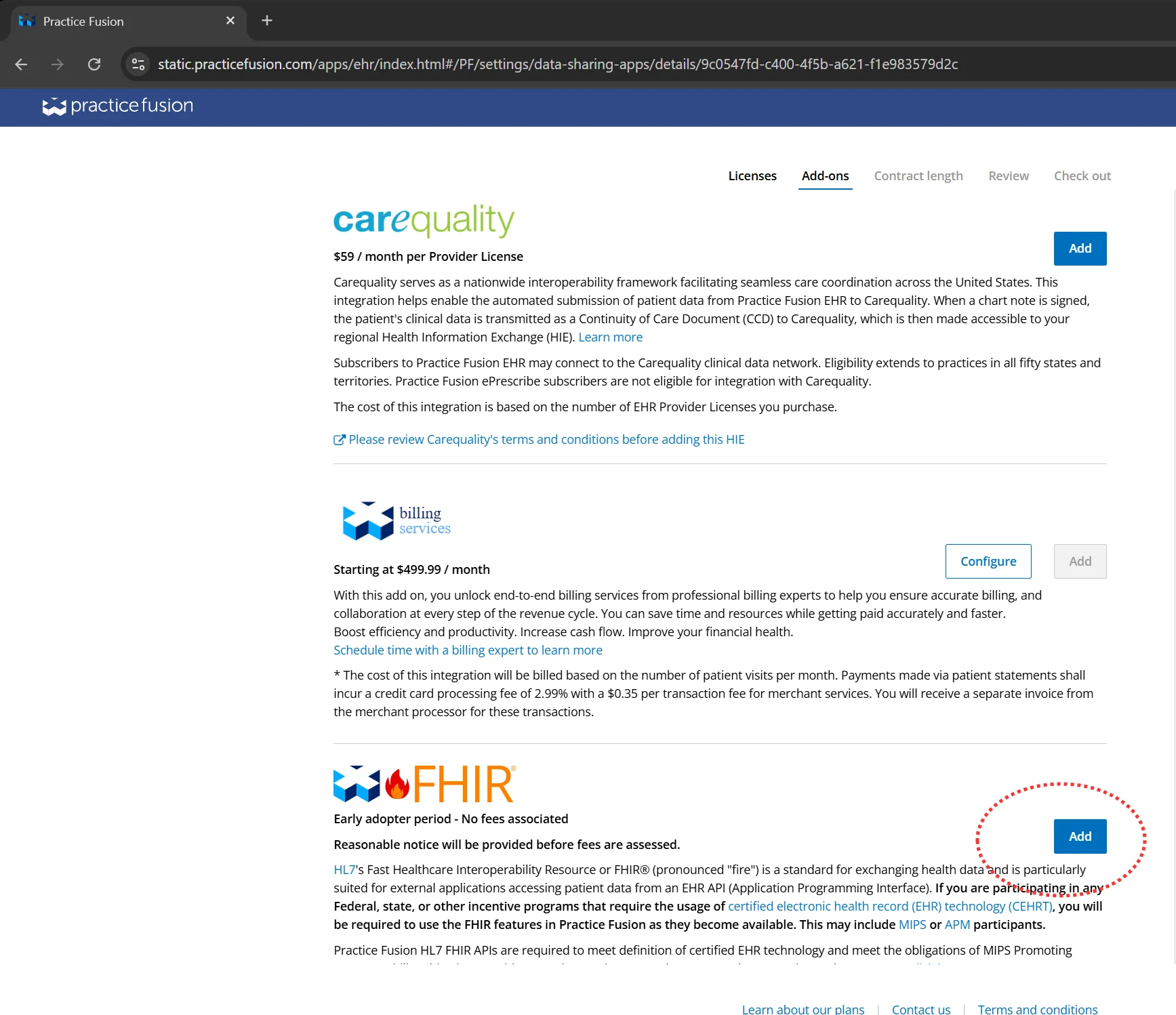
Add the FHIR add-on
Add-ons tab
Scroll down to the HL7 FHIR section and click Add. This is the API channel Scribe360 uses to read patient charts (conditions, allergies, medications, vitals) for SOAP context.
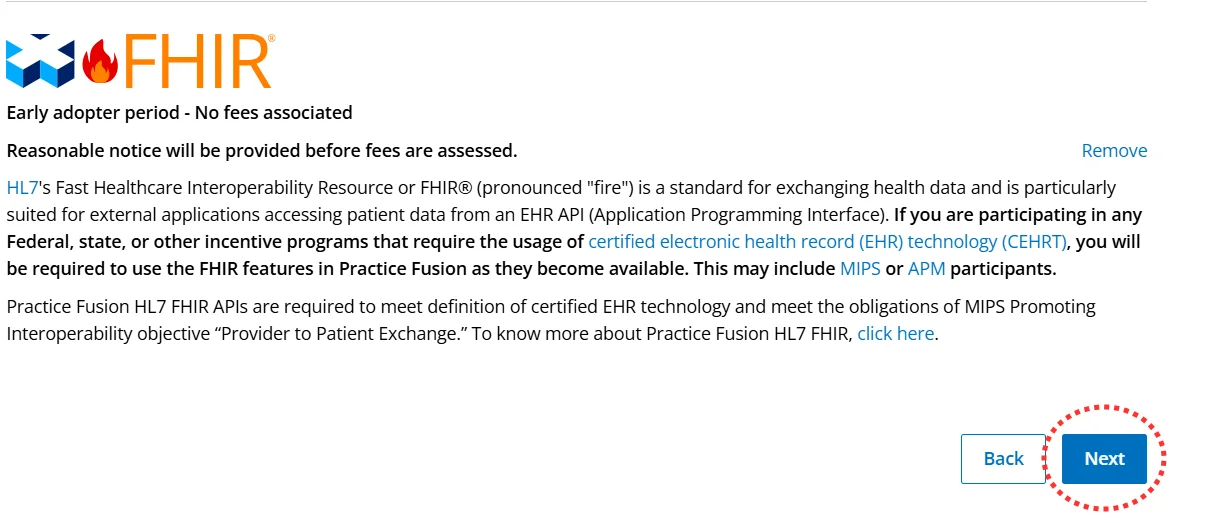
Confirm the FHIR add-on
FHIR add-on detail
Read the FHIR description and click Next.
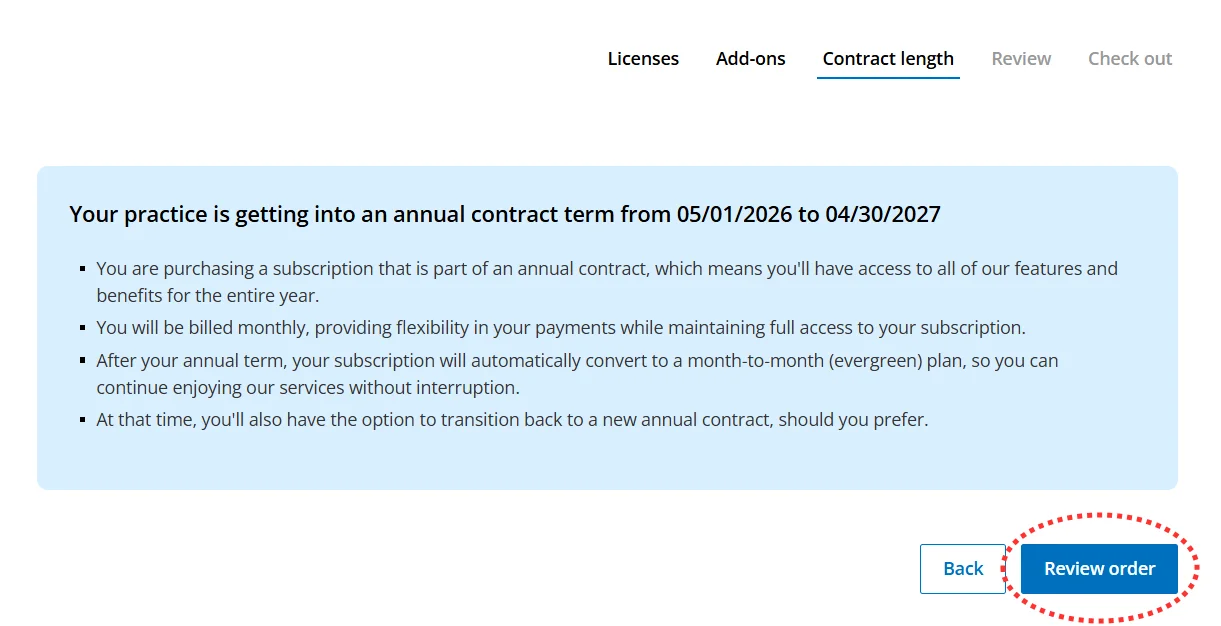
Review contract length
Contract length step
Practice Fusion shows the contract term (annual, billed monthly, with auto-conversion to month-to-month after the first year). The FHIR add-on contributes $0 / month to your order. Click Review order.
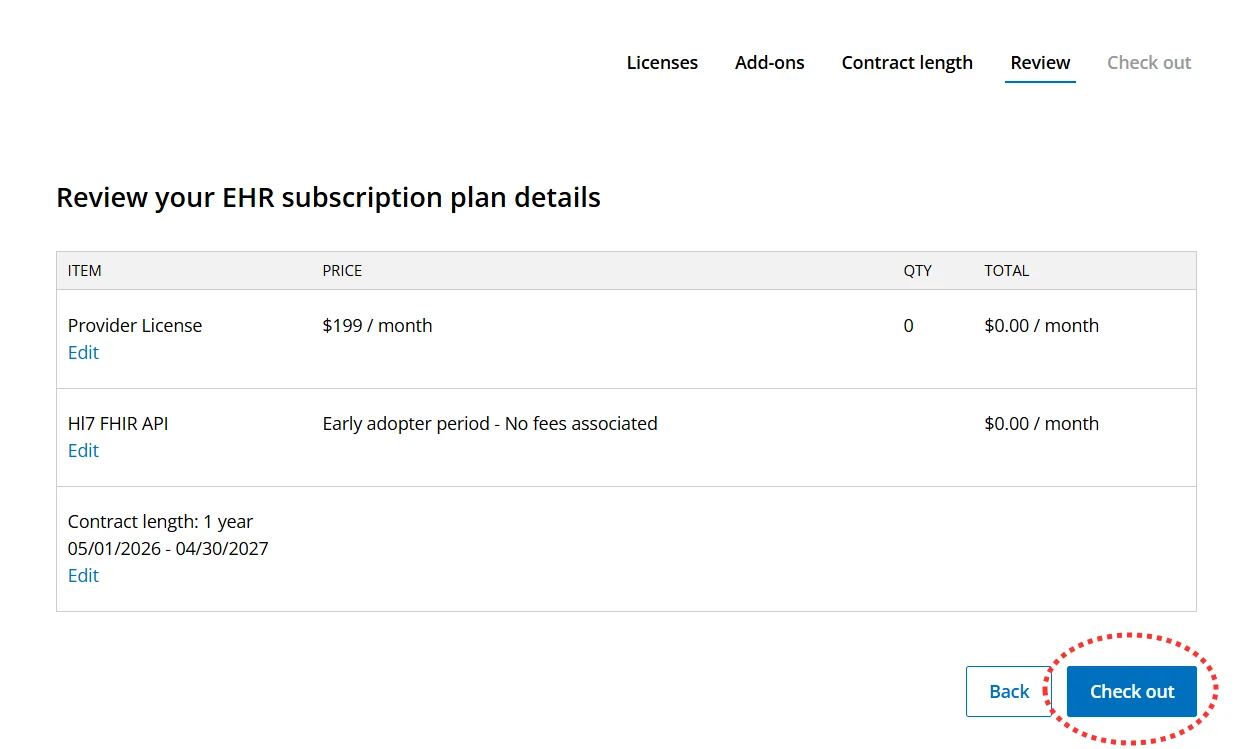
Review the order
Review step
Confirm the order line items. The HL7 FHIR API line shows "Early adopter period - No fees associated". Click Check out.
Place the no-cost order
Check out step
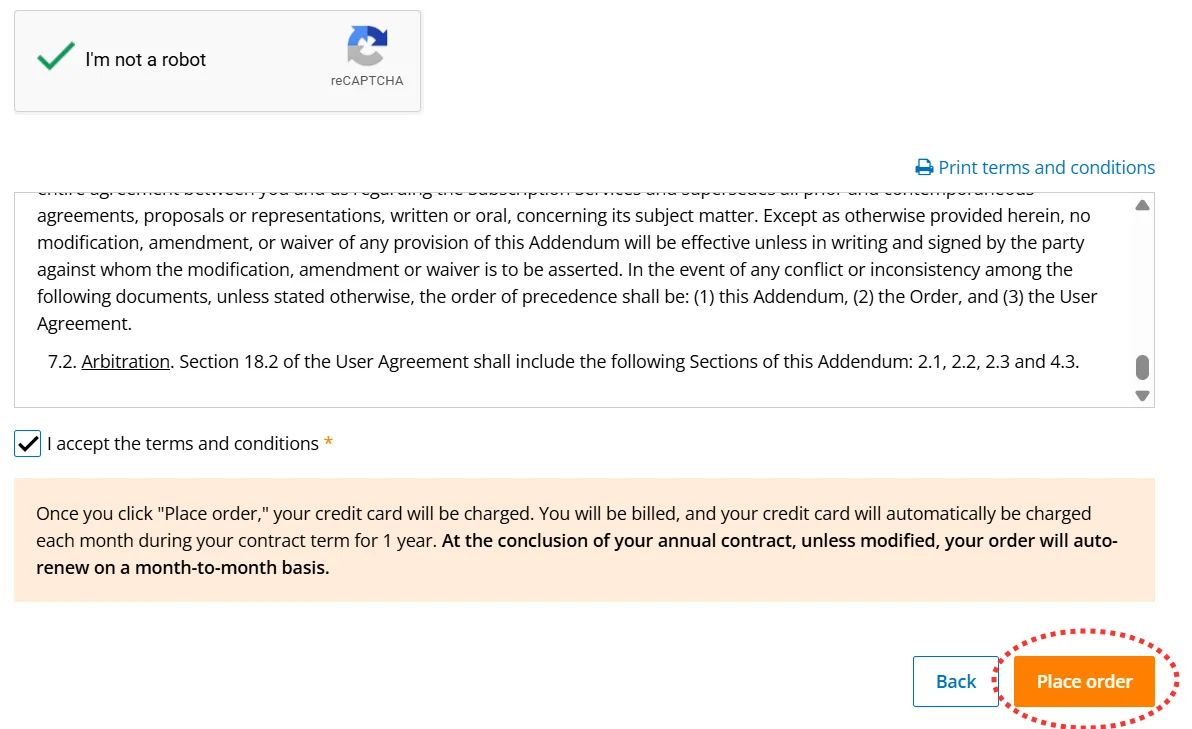
Scroll to the bottom, complete the "I'm not a robot" CAPTCHA, check "I accept the terms and conditions", and click Place order. There is no charge during the early adopter period.
Step-by-step: Scribe360 side
Once Practice Fusion confirms the FHIR add-on is active (this is typically immediate after Place Order):
- In Scribe360, sign in as the physician or practice admin for the practice that subscribed to the FHIR add-on.
- From the user menu, click Settings.
- In the Practice Information card, set EMR to Practice Fusion if it isn't already, then save.
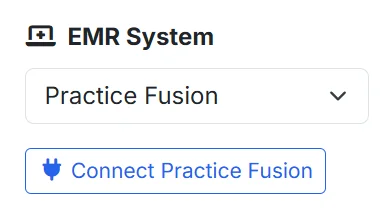
- Click Connect Practice Fusion. You'll be redirected to Practice Fusion's authorize page — sign in if prompted, then approve the data-access scopes Scribe360 requests.
- Practice Fusion redirects you back to Scribe360. The Settings page now shows the connection as Active, with the connecting clinician's name and date.
From this point on, every SOAP generation for this practice automatically pulls recent EMR chart context. Token refresh happens silently before each call; you don't need to reconnect unless Practice Fusion reports the connection has been revoked.
How to confirm it's working
The simplest check: generate a SOAP note for a patient who exists in both Scribe360 and Practice Fusion. The Objective section should pull recent vitals from Practice Fusion (with a date label such as "Vitals (2025-08-07): ..."), and the Assessment may invoke chronic conditions on file when relevant to today's encounter.
If the Objective still says "[Vital signs not documented in transcript]", the patient probably couldn't be matched to Practice Fusion by demographics. Contact support and we'll help reconcile the records.
If something goes wrong
| What you see | What it usually means |
|---|---|
| "Unable to connect to Practice Fusion. Please try again later." | Either Practice Fusion is temporarily unreachable, or your practice's NPI on file doesn't match the one Practice Fusion has registered. Verify your NPI in Settings → Practice Information. |
| "Your practice was not found in Practice Fusion." | The NPI we have for your practice didn't match any organization in Practice Fusion's directory. Update the NPI in Settings to the same one used in Practice Fusion. |
| Practice Fusion authorize page rejects the request | Most often: the FHIR add-on hasn't been confirmed active yet, or the Practice Administrator hasn't completed Place Order. Wait a few minutes and retry; if it persists, contact support. |
| Connection shows Active but SOAP doesn't include EMR data | The patient could not be matched to Practice Fusion by demographics (name + DOB + gender). Contact support and we can reconcile the records or look up the patient by additional fields. |
Still stuck? Email support@scribe360.app with your practice name and a brief description of where the flow broke.